
This audio warmup accompanies the “How to Warm Up on Sunday Morning” video training. Downloading the warmup to your device is a great way to take them on the go, even when you don’t have a data connection. Read on for tips on getting the warmup onto your various devices.
Using Apple Music on a desktop/laptop computer
The easiest way to get your audio files on your iOS device is via a desktop or laptop computer using iTunes.
Using Files app on an iPhone or iPad
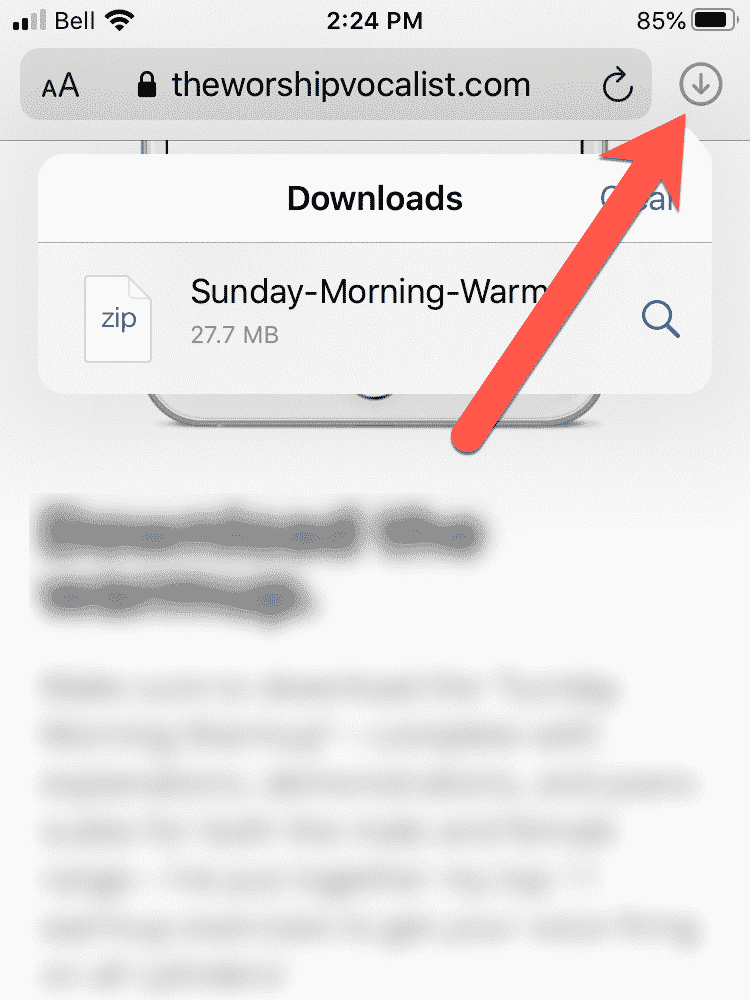
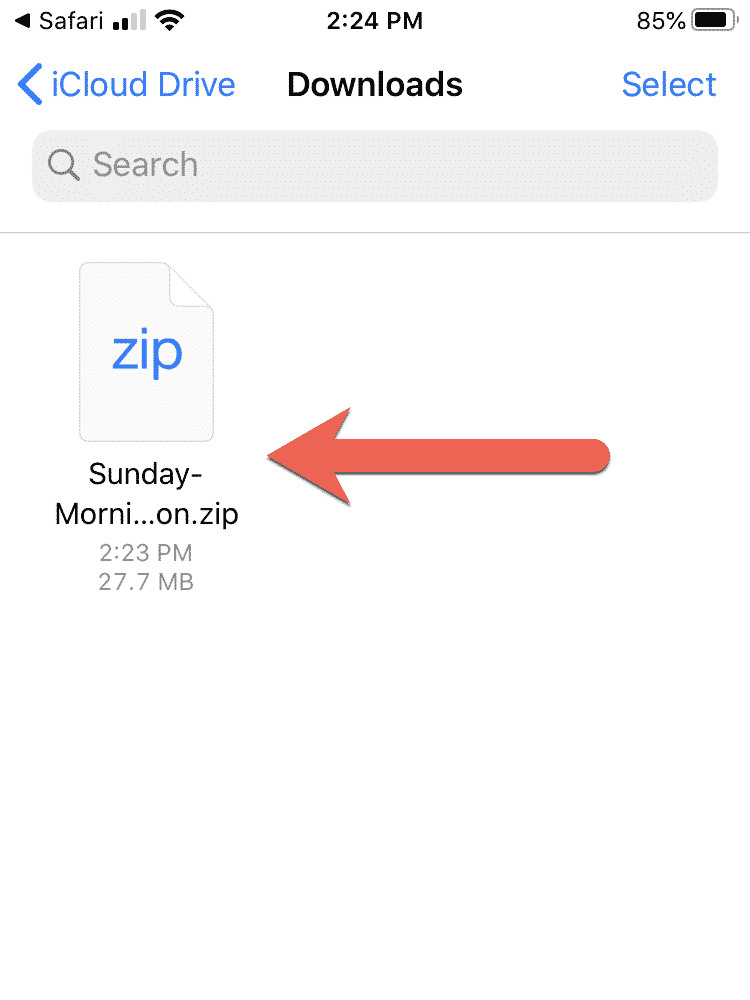
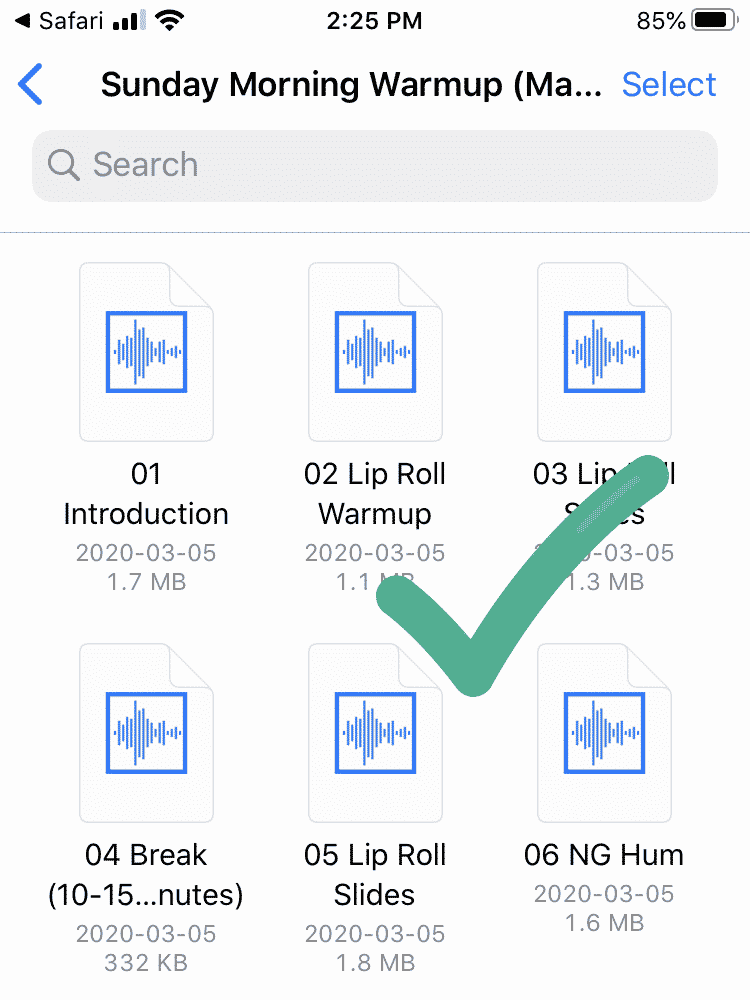
You can open a ZIP file directly on your iPhone or iPad running iOS 11 or newer. *Please note: some users are experiencing issues playing MP3 or WAV audio files from the Files app. If you’re having difficulty, see below for an alternative solution.
Using Doppler App on an iPhone or iPad
If you’re experiencing issues with the Files app playing music files, or want to have continuous playback with playlists, you can also use a third-party app to manage that. There’s no way to put them directly into the Music app without iTunes, but we’ve had good success using an app called Doppler. They currently have a 7-day free demo, and then it’s a one-time purchase of $9 USD.
Using a desktop/laptop computer
The easiest way to get audio files onto your device is to use a desktop/laptop computer. The instructions vary depending on the kind of phone you’re using, but here are a few common options:
Using a phone or tablet
If all you have is a phone or tablet, you may need a third-party app to open and “unzip” (or unpack) the download file and move those music files somewhere they can be played. For a helpful list of options, check out this tutorial.